Phone Camera Settings for Consistent Hair-Tracking Photos
Written by the Balding AI Editorial Team, medically reviewed by Dr. Nga Nguyen (Dermatologist), grounded in AAD and NHS clinical guidelines. Tracking guidance, not medical advice or diagnosis.
Key Takeaways
- Turn off HDR, Smart HDR, Night mode, and Portrait mode, since they all alter detail and contrast unpredictably
- Lock focus and exposure (AE/AF lock) on every shot to prevent the phone from rebalancing between sessions
- Use the 1x main lens, not 0.5x ultrawide or 2x/3x telephoto, and keep distance fixed
- Daylight from a window beats ring lights and ceiling lights; avoid flash, which flattens density cues
Key Takeaways
- Turn off HDR, Smart HDR, Night mode, and Portrait mode, since they all alter detail and contrast unpredictably
- Lock focus and exposure (AE/AF lock) on every shot to prevent the phone from rebalancing between sessions
- Use the 1x main lens, not 0.5x ultrawide or 2x/3x telephoto, and keep distance fixed
- Daylight from a window beats ring lights and ceiling lights; avoid flash, which flattens density cues
Jump to sections
The hardest part of tracking hair loss is not taking photos. It is taking photos that can be compared. Modern smartphones apply dozens of invisible adjustments to every shot (exposure balancing, HDR tone-mapping, skin smoothing, contrast enhancement, lens switching, automatic white balance) that are designed to make casual photography look better and that make scientific comparison nearly impossible. A photo of your scalp in March that the phone shot in HDR mode at 0.5x is comparing apples to a different fruit when held next to one shot in April at 1x without HDR. The hair has not changed. The processing has. If you want six months of photos to actually mean something, you need to lock down the camera before you lock down anything else.
Lock your settings once, use them every month
BaldingAI guides each capture with the same lighting, distance, and framing cues. The hardest part, making this month's photo match last month's, gets handled for you.
Use the BaldingAI hair tracking app to save one baseline session now, compare monthly checkpoints later, and keep one clear record for your next treatment or dermatologist decision.
Take one baseline session today. You cannot go back and capture last month, and the comparison you will want in three months only exists if today is in it.
Why default phone camera settings ruin hair tracking
Phone cameras are computational. The image you see on screen is not what the sensor captured. It is what the phone's image processing pipeline decided to show you after fusing multiple exposures, applying machine-learning models, and tuning contrast for whatever subject it thinks you are shooting. For most photography, this is a gift. For hair tracking, it is a problem, because the algorithms make different decisions each session based on lighting, focus, and what they recognize in the frame.
Three specific behaviors cause the most damage. First, automatic exposure rebalances to whatever appears brightest, so a shot taken near a window will expose differently than one taken under ceiling light, even if the actual scalp brightness is identical. Second, HDR and Smart HDR fuse multiple exposures and lift shadows, which artificially reduces the visible contrast between hair and scalp, the exact contrast you are trying to measure. Third, skin-smoothing and detail-enhancement algorithms, applied automatically in most modern phones, can soften the appearance of fine miniaturized hairs or sharpen them inconsistently between months. Sinclair (2007) and later trichology imaging studies have all emphasized that comparison photography requires standardized capture, and the modern phone camera defaults to the opposite of that.
iPhone settings to lock down
Turn off Smart HDR. Settings → Camera → Smart HDR → off. This stops the phone from fusing multiple exposures and lifting shadow detail. Without HDR, what the sensor sees is what you get.
Turn off Night mode for tracking shots. If you shoot in a dim room, the phone may invoke Night mode automatically, which captures a long exposure and applies aggressive noise reduction. The result is a smoothed, denoised image with different micro-detail than a normal exposure. Either shoot in better light or, on supported iPhones, tap the Night mode icon and slide it to off before each shot.
Stay out of Portrait mode. Portrait mode applies computed depth blur and skin smoothing. Both are catastrophic for hair photography because they blur exactly the fine-strand detail you are trying to compare and may apply different smoothing strengths to different parts of the scalp.
Use the 1x main lens. The 0.5x ultrawide has lower resolution, more distortion at the edges, and different color science than the main lens. The 2x or 3x telephoto on Pro models uses a different sensor entirely. Pick 1x and never switch.
Lock AE/AF. Open the camera, tap and hold on the area of scalp you want in focus until you see the AE/AF LOCK banner appear. This freezes both exposure and focus at that point. Take the photo. Re-lock for each shot, ideally on the same scalp landmark each time. This is the single most important step for comparable photos because it prevents the phone from rebalancing brightness based on whatever else is in the frame.
Shoot in JPEG, not HEIC, if you plan to share with a dermatologist. Settings → Camera → Formats → Most Compatible. HEIC has better compression but some viewers reject it. JPEG is universal. For your own records, either works, but consistency matters, so pick one format and stay with it.
Disable Live Photos for tracking shots. A Live Photo is a brief video, and the phone sometimes saves the "key frame" (a frame other than the one you pressed the shutter for). Tap the Live Photos icon at the top of the camera to turn it off.
Android settings to lock down
Android camera apps vary by manufacturer, but the same principles apply across Samsung, Pixel, OnePlus, and others.
Turn off Scene Optimizer / AI Camera / Google Photo enhancements. On Samsung, this is in the camera app's settings. On Pixel, it is the Top Shot and Motion features plus any "AI enhancements." These all attempt to re-tune the image after capture and produce inconsistent results between sessions.
Switch to Pro mode where available. Most flagship Android cameras have a Pro or Manual mode that lets you set ISO, shutter speed, and white balance manually. Set ISO to 100 (or the lowest available), white balance to a specific Kelvin value matching your lighting (5500K for daylight, 3000K for warm indoor), and shutter speed to whatever produces a properly exposed image without blur. Save these as a custom preset if your camera app allows.
Turn off HDR. Same logic as iPhone. Find HDR in the camera settings and switch it from Auto to Off.
Avoid beauty filters and selfie smoothing. Some Android phones apply skin smoothing by default even to non-selfie shots if a face is detected. Dig into the camera settings and turn these off explicitly, as they are often buried under names like "Face retouch," "Beauty," or "Skin smoothing."
Use the main lens only. Same as iPhone: do not switch between ultrawide, main, and telephoto between sessions.
Lighting: the variable that beats every setting
Even with the camera perfectly configured, inconsistent lighting destroys comparability. The cheapest and most reliable solution is daylight from a window, taken at the same time of day each month. North-facing windows (in the northern hemisphere) give the most even, diffuse light. Avoid direct sunlight, which casts harsh shadows and overexposes light-colored hair.
Ceiling lights are the second-best option but require care. Overhead bulbs cast strong shadows on the scalp, which is useful for revealing density loss, but only if you stand in the exact same spot relative to the bulb each time. Mark the floor with a small piece of tape and use it every session. Avoid mixing daylight and ceiling light, because the two color temperatures combine unpredictably and the phone's white balance will compensate differently each time even if you have it set manually.
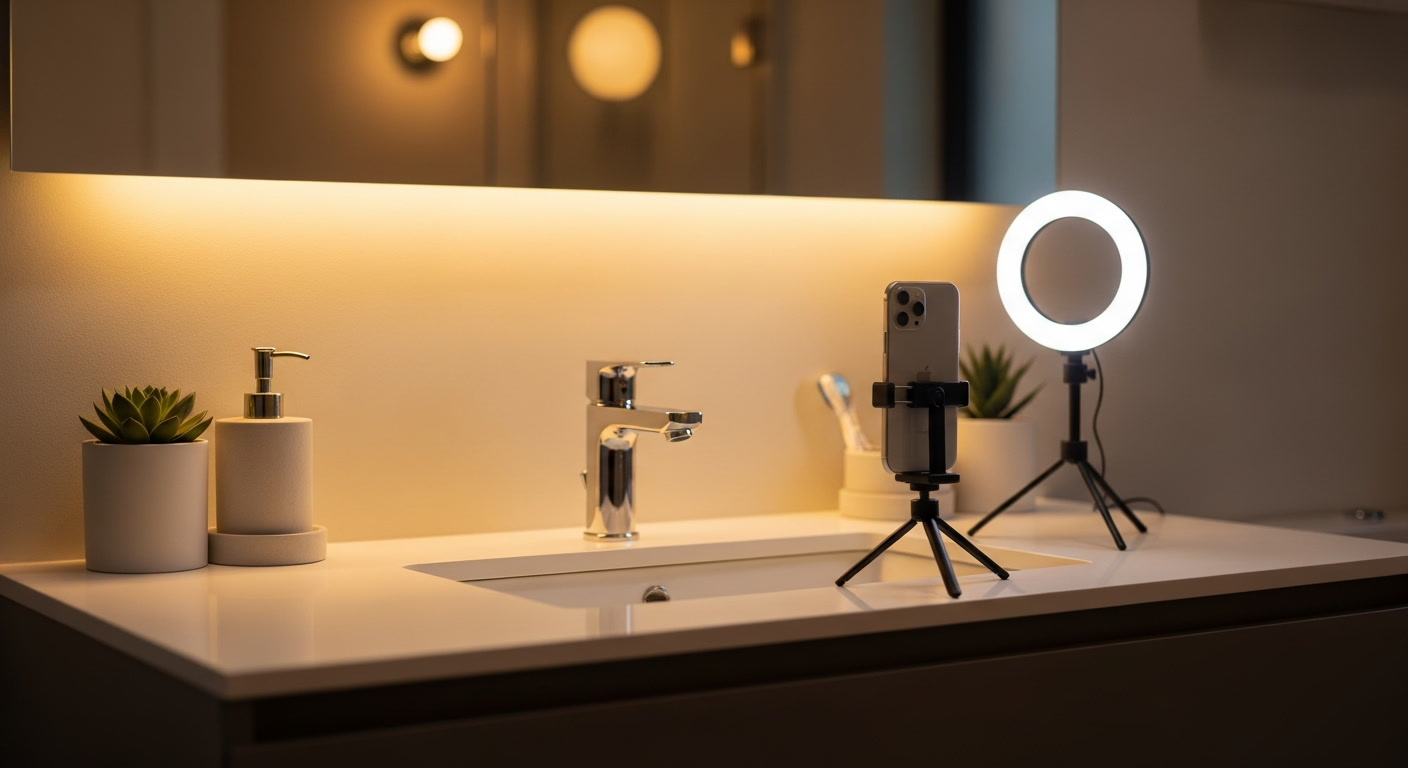
Do not use the camera flash. Flash flattens the image, eliminates the very shadows that reveal density loss, and applies a harsh white light that the phone may handle differently across firmware updates. Ring lights are popular for selfies and terrible for hair tracking because they wrap the scalp in even light from all angles, hiding the depth cues that show miniaturization.
Framing: distance, angle, and reference points
Distance matters. The closer the phone, the more lens distortion and the more dramatic small changes in position appear. A reasonable working distance is 30 to 50 centimeters, close enough to capture fine detail, far enough that a 2 cm difference in phone position does not radically change the framing.
For crown shots, the easiest method is to use a second mirror or hand the phone to someone you trust. If you are shooting yourself, mark the phone's position relative to your head with a physical reference: a doorframe, the corner of a counter, or a piece of tape on a wall. The goal is for next month's photo to be framed exactly the same way as this month's.
For temple and hairline shots, find a reference landmark on your face (the edge of your eyebrow, the corner of your eye) and frame so that the same landmark appears at the same position in the photo each time. Without these landmarks, even a small head tilt produces an image that looks like the hairline has receded or advanced when it has not.
A repeatable monthly capture protocol
Pick a fixed location, time, and lighting setup. Bathroom mirror under daylight from a nearby window works for most people. Same room, same time of day, same window light.
Wet your hair or towel-dry to consistent dampness. Wet hair clumps and reveals scalp more clearly than dry styled hair. If you choose wet, always shoot wet. If you choose dry, always shoot dry. Pick one and stay with it.
Capture three zones in this order: temples (both sides), crown (top-down), and part line. For each, lock AE/AF on the same scalp landmark you used last month, frame using your reference points, and take three shots in rapid succession. Pick the sharpest later.
Save and label immediately. Phones rename or reorganize files. Label each photo with the date and zone (e.g., "2026-05-18-crown.jpg") or use a dedicated tracking app that handles metadata automatically.
For a deeper look at how to spot the changes you are now capturing reliably, see our miniaturization guide and the comparison-traps guide, which covers the cognitive errors that occur even with perfect photos.
Make the camera work for you, not against you
HairLossTracker remembers your framing, lighting, and zones so each monthly session takes two minutes and produces photos your dermatologist (and your future self) can actually compare.
Use the BaldingAI hair tracking app to save one baseline session now, compare monthly checkpoints later, and keep one clear record for your next treatment or dermatologist decision.
Take one baseline session today. You cannot go back and capture last month, and the comparison you will want in three months only exists if today is in it.
What this guide helps you decide
Configure an iPhone or Android camera correctly for repeatable hair progress photos that can be meaningfully compared month over month
Best for readers already running a plan and trying to keep month-level reviews interpretable.
Use This Guide Well
For fundamentals content, the strongest signal is process quality: repeatable photos, stable scorecards, and comparable checkpoint windows.
- Keep capture conditions fixed across all weekly sessions.
- Log adherence and routine changes immediately after each capture.
- Run a monthly decision review with trend snapshots and notes.
Safety note
This article is for education and tracking guidance. It does not replace diagnosis or treatment advice from a licensed clinician.
- Use matched photo conditions whenever possible.
- Review monthly trends instead of reacting to one photo day.
- Escalate persistent uncertainty or symptoms to clinician care.
Questions and Source Notes
Stop your camera from sabotaging your tracking
HairLossTracker guides you through positioning, lighting, and angle each session and stores your reference framing, so your month-to-month photos stay comparable instead of drifting.


Keep Reading From Here
Continue with the next article or matching tracking route that keeps this guide actionable instead of sending you back into broad browsing.
Next editorial reads
How to Measure Hair Density at Home Accurately
Foundational Guide · implementation
Tracking Hair Loss After a Haircut: How to Keep Photos Comparable
Foundational Guide · awareness
Terminal-to-Vellus Hair Ratio: The Metric Trichoscopists Actually Measure
Foundational Guide · awareness
Hair Loss Genetics: Can You Actually Predict Balding?
Foundational Guide · awareness